How to Automate Domain Mailbox Provisioning
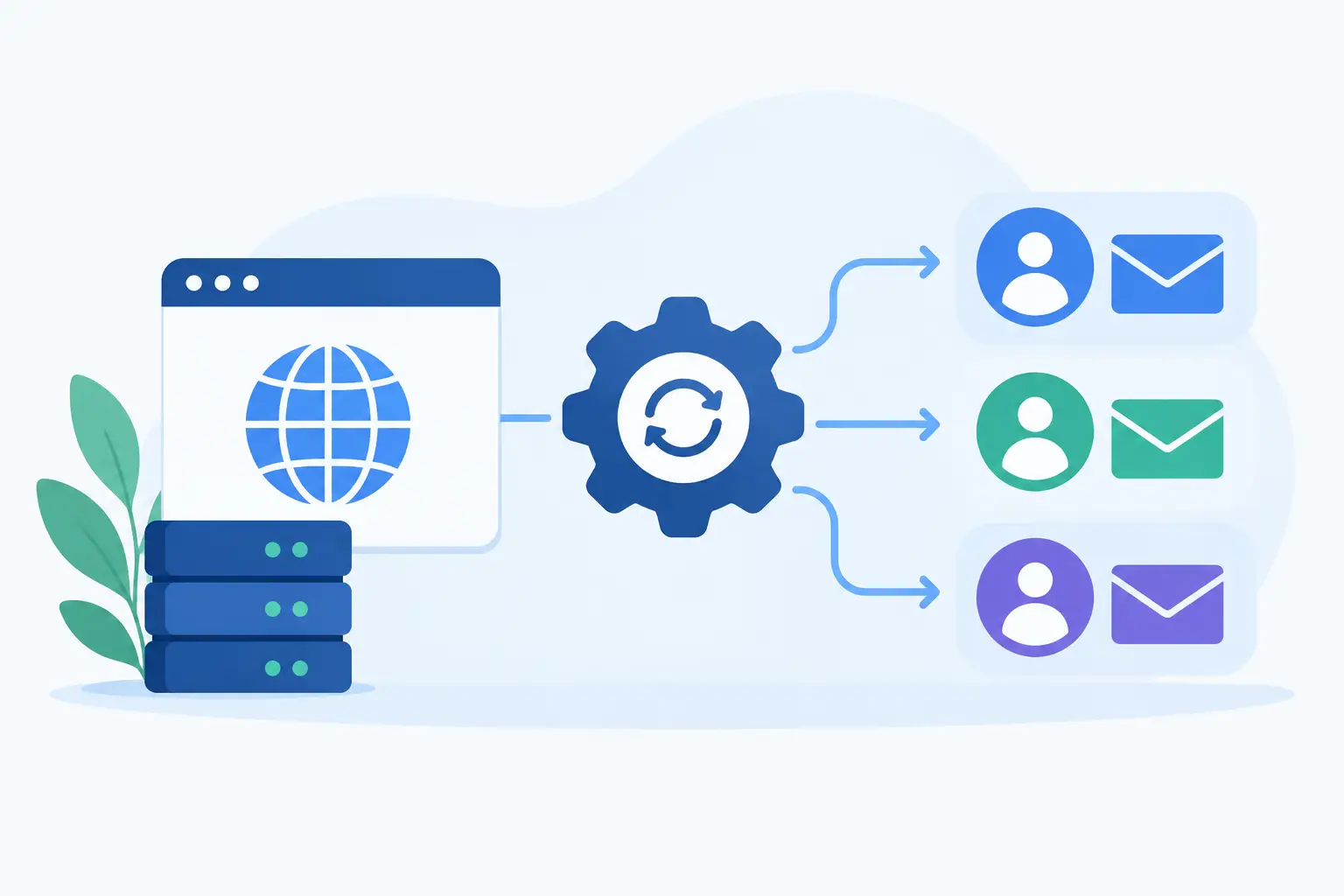
A new hire starts Monday. A client project needs its own address today. Your family adds a new shared inbox for school notices. None of these should require someone to log into an admin panel, click through five screens, and copy settings into a spreadsheet.
When you automate domain mailbox provisioning, email becomes part of your normal operating workflow. Your source of truth might be an HR system, a customer portal, a lightweight database, or a simple internal form. That system triggers the creation of the right mailbox, aliases, permissions, and welcome instructions at the right time.
The goal is not automation for its own sake. It is fewer missed steps, clearer ownership, and a consistent experience when your organization grows.
What mailbox provisioning actually includes
Creating an email address is only one part of provisioning. A useful workflow starts with an identity, such as Jordan Lee, and decides which mailbox, aliases, access details, and collaboration settings belong to that person.
For a small business, that could mean creating `jordan@yourdomain.com`, then adding `billing@yourdomain.com` as a shared alias that delivers an independent copy to Jordan and the finance lead. For a family, it could mean a mailbox for a teenager plus a shared `school@familydomain.com` alias for two parents. For a freelancer with several brands, it may mean one mailbox with sending aliases for each business identity.
Domain setup belongs in the workflow too. Before mail can reliably arrive, the domain needs the required DNS records. DNS is the system that tells the internet where to deliver email and which servers may send on your domain's behalf. MX records handle delivery. SPF, DKIM, and DMARC help receiving providers evaluate whether a message is legitimate.
The exact provisioning scope depends on your needs. A two-person household may want a simple create-and-invite flow. A growing company may also need approvals, naming rules, offboarding, audit records, and a migration process for existing mail.
Why manual setup breaks down
Manual administration can work for a handful of addresses. It becomes fragile when the person responsible is busy, away, or relying on undocumented habits. Someone creates a mailbox but forgets the shared alias. A contractor leaves, yet their forwarding rule remains. A new domain is added, but its DKIM record is never checked.
These are usually process problems, not technical failures. Automation makes the process explicit.
It also avoids a common cost problem. Many business email services charge for every added user, which can make teams hesitate before creating separate addresses for a project, family member, or new employee. FranklyMail uses one annual mail plan price of $9 with unlimited mailboxes, domains, and aliases, plus 10 GB of pooled storage. There are no per-person fees. Extra storage costs $0.40 per GB per year, and tax may apply.
That pricing does not remove the need for sensible administration. It does make it easier to create the addresses people actually need without treating every mailbox as a new recurring seat cost.
A practical workflow to automate domain mailbox provisioning
A good automation is boring in the best sense. It handles routine cases consistently and sends exceptions to a human before they become a mess.
1. Establish a source of truth
First decide where a request begins. For employees, it might be a hiring system. For clients, it might be a paid account in your application. For a household, a short admin form may be enough.
That source should provide the basics: full name, preferred address, department or group, start date, manager or owner, and whether the person needs a regular mailbox or an alias only. Keep this data separate from email credentials. Your provisioning system should request what it needs rather than storing passwords in a spreadsheet.
Set naming rules before you write code. `first.last@domain.com` is easy to understand, but names can collide. Decide how to handle duplicates, punctuation, name changes, and former employees. A rule such as `first.last`, then `first.middle.last` if needed, is far better than inventing addresses case by case.
2. Confirm the domain is ready
Do not create a large batch of mailboxes and assume mail will work later. Your automation should first check whether the domain exists in the email service and whether its DNS setup is complete.
A guided DNS check is useful here. It should identify missing or incorrect MX, SPF, DKIM, and DMARC records in plain language. This is also the point to catch a domain that is still connected to another mail provider. Changing MX records affects where new mail is delivered, so a migration plan matters.
If the DNS check fails, stop the mailbox workflow and notify the administrator with the specific records that need attention. Retrying automatically after a reasonable delay can be helpful. Repeatedly creating partial accounts is not.
3. Create the mailbox, then attach the right aliases
Once the domain passes validation, use the management API to create the mailbox. FranklyMail's separate management HTTP API is designed to automate domains, mailboxes, aliases, and migrations. This administrative API is distinct from a mailbox user's access to email. Creating an account is not blanket permission to read every person's messages.
After the mailbox exists, add aliases based on policy. An ordinary alias can give one person more than one public address. A shared alias can send independent copies to up to 50 mailboxes. That works well for addresses such as `support@`, `orders@`, or `family@` when several people need their own copy.
Shared aliases have limits worth understanding. They do not provide a shared read state, reply assignment, or a team ticket queue. If two recipients reply, they need their own coordination process. They are practical for distribution, not a replacement for help desk software.
For people who need to send from an alias, define that during provisioning as well. FranklyMail webmail supports ordinary, shared, and cross-domain sending aliases. The provisioned identity should match how the person will actually communicate with customers, vendors, or relatives.
4. Deliver access without weakening security
Provisioning is incomplete if the new user does not know what to do next. Send a clear onboarding message to a verified contact method, not necessarily the new mailbox itself. Explain how to sign in, set a password, and turn on two-factor authentication.
For desktop and mobile email apps, use IMAP or JMAP as appropriate. App passwords can help when an older mail client does not support your normal sign-in flow. Keep the instructions short and tailored to the user's role. A family member needs a different welcome note than an administrator managing 40 accounts.
Avoid emailing permanent credentials or putting them in chat messages. If your workflow must generate a temporary secret, use a short expiration period and require a password change at first sign-in.
5. Record the result and handle failures
Every provisioning action should produce a record: who requested it, which domain and mailbox were created, which aliases were attached, when DNS was checked, and who approved an exception. This makes offboarding and troubleshooting much easier.
Build for idempotency, too. In plain English, if the same request is submitted twice, it should not create two mailboxes or duplicate aliases. Your automation should recognize the prior result and either return it or report a meaningful conflict.
Failures deserve their own path. An address may already exist. A domain may not be verified. A shared alias may exceed its recipient limit. Send these cases to an administrator with enough detail to resolve them. A vague “provisioning failed” message saves nobody time.
Provisioning and migration are different jobs
Creating a new mailbox is straightforward. Moving years of existing email is a separate project. Treating them as the same task can cause confusion about where new mail should arrive and whether old folders are available yet.
For a provider switch, create the destination mailboxes first, plan the DNS change, and use IMAP migration for historical messages where appropriate. Run a small pilot before moving everyone. Delivery history can help investigate what happened to individual messages, but it cannot guarantee inbox placement at every recipient provider.
Calendar also needs attention in a move. Users may import and export `.ics` files, and CalDAV supports compatible calendar clients. FranklyMail Calendar supports sharing, invitations, recurring events, reminders, and Meet links. Those settings are useful to include in onboarding, but they should not block the first mailbox from being created.
Keep AI access separate from admin automation
Mailbox provisioning and AI-assisted mailbox work solve different problems. An administrator may use the management API to create an account. The mailbox user may separately authorize Agentic Inbox to help search messages, organize folders, bulk-move mail, or prepare drafts.
That authorization is mailbox-specific and controlled by the user. Each send still requires the mailbox user's review and approval. If your policy permits AI tools, explain that authorized content is shared with the chosen AI provider and document who can connect which mailbox. Do not quietly turn a provisioning event into permission for automated message access.
The best provisioning system leaves people with an address that fits their work, a clear way to sign in, and an admin record that will still make sense six months later. Start with one repeatable workflow, test it with real edge cases, and add complexity only when it solves a problem you actually have.