How to Move Mail Between Hosts Without Losing It
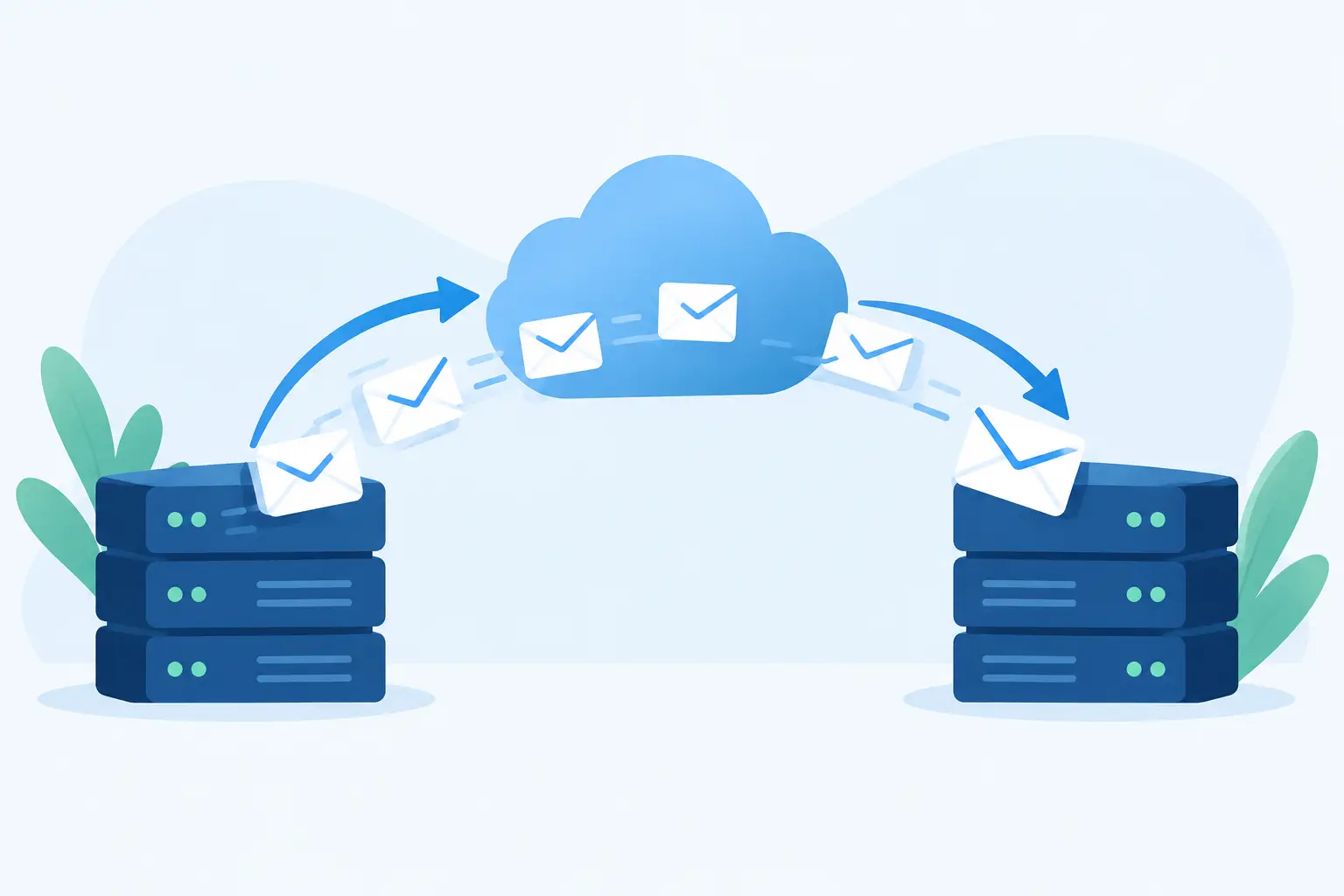
Moving a domain is easy. Moving the mail history behind it is where people get nervous, for good reason. To move mail between hosts without losing messages, you need to treat the job as two separate changes: copying the existing archive and changing where new mail is delivered. Mix them together without a plan and you can create gaps, duplicates, or an old account that quietly keeps receiving mail.
The good news is that standard IMAP mail is portable. Your folders, messages, read state, and dates can usually move from one compatible provider to another. The work is mostly about timing, credentials, storage, and verifying what happened before you close anything.
Move Mail Between Hosts in the Right Order
A safe migration follows a simple order: prepare the destination, copy existing mail, switch DNS delivery, then run a final copy to catch messages that arrived during the change. Keep the old service active until you have checked the new one from more than one mail client.
This is less dramatic than it sounds. DNS does not flip every sender in the world at the same second. Some systems will use cached DNS records for hours, and a few may retry delivery later. That is why shutting down the old mailbox immediately after changing MX records is a bad idea.
Start with an inventory, not a migration button
Before you copy a byte, write down what exists at the old host. Count mailboxes, aliases, shared addresses, forwarding rules, catch-all addresses, and domains. Check which accounts actually need old mail. A former employee mailbox with 12 years of attachments may need a different retention decision than a support alias that only receives automated notices.
Also measure storage. The source provider may report 8 GB used, while the destination may calculate usage differently or include folders you forgot existed. Deleted Items, Junk, Archive, Sent, and old import folders all count. If the new host uses pooled storage, calculate the whole account, not just the largest inbox.
Do not assume every setting transfers with messages. IMAP moves email, not necessarily contacts, calendars, signatures, client profiles, forwarding rules, filters, vacation replies, or permissions on shared folders. Export contacts separately if you use them. Recreate server-side rules at the destination. If you depend on Sieve filtering, copy and review the scripts rather than assuming a provider-specific rule builder will translate cleanly.
Confirm the source will allow access
Standard IMAP migration needs a working username, password or app password, the IMAP server name, and the correct port and encryption settings. If two-factor authentication is enabled, an app password is often required.
This is a point where provider policies matter. Some services restrict password-based access or require additional authorization for migration tools. Google and Microsoft can require app-specific setup, admin approval, or modern authentication workflows depending on the account. Proton's architecture also has different access constraints and may require its desktop bridge for compatible client access. None of these make migration impossible, but they make a quick, unattended transfer less likely.
If the old provider will be canceled by a former administrator, regain control first. You should have access to both the source mailbox and the domain's DNS before starting. An exported mailbox file is useful as a backup, but it is not a substitute for access to the live account during cutover.
Copy Existing Mail Before Changing MX Records
Set up every destination mailbox first. Use the same addresses where practical, especially for the people who receive the most mail. Add required aliases and catch-all behavior before changing delivery, so a message sent to an alternate address does not bounce on day one.
Then run the initial IMAP migration. A proper tool connects to both servers, reads folders from the source, and copies messages to matching folders at the destination. It should preserve message dates and folder structure. Depending on the tool and server capabilities, flags such as read, flagged, and answered may transfer too, but verify that rather than promising it to users.
For a small account, a desktop mail client can copy folders between two configured IMAP accounts. This is workable when there are one or two mailboxes and someone can watch the process. It is a poor choice for an organization with dozens of accounts, unreliable internet, or years of mail. Desktop clients can pause, sleep, hit local disk limits, or quietly fail on a problematic folder.
A server-to-server migration tool is usually the better route. It avoids routing the entire archive through one person's laptop and can be rerun. FranklyMail supports standard IMAP mailbox migration, which is the right model for mail that should remain portable rather than trapped in a proprietary export format.
Large mailboxes take time. Attachments, many small messages, rate limits at the source, and a slow source server all affect the clock. Start the initial copy well before the DNS change. It can run for hours or days without disrupting the old mailbox because users can keep sending and receiving there.
Do not panic if the first copy reports a few problem messages. Very old mail can contain malformed headers, unusual character encodings, or folders with names the new server does not accept. Record the failures, investigate them, and decide whether they are important enough to recover individually. A migration that copied 99.99% of 200,000 messages is not necessarily broken, but the missing messages should not be invisible.
Change DNS Carefully, Then Perform a Delta Sync
When the initial copy is substantially complete, publish the new MX records. This tells other mail servers where to deliver incoming mail for your domain. Update SPF at the same time if your sending service is changing. Enable DKIM at the new host and make sure your DMARC policy aligns with the systems that will still send mail as your domain.
Do not remove the old MX records until the new MX records are in place and confirmed. Follow the exact priority and hostname values provided by the new host. A typo in an MX record can stop incoming mail entirely. DNS verification tools are useful, but test from the real world too: send messages from an unrelated address and confirm they arrive in the new mailbox.
After changing MX, leave the old service active. Run the migration again. This second pass is the delta sync: it catches the mail that arrived at the old server while the first copy was running and during DNS propagation. For a busy domain, run it more than once over the next day or two.
A short overlap is not wasteful. It is insurance. Some senders will deliver to the old host because they cached your prior MX records. Others may retry a deferred message after your new records are live. Keeping both systems available prevents a temporary DNS inconsistency from becoming a permanent lost message.
Verify What Users Actually Need
Migration reports are helpful, but users notice different things. Ask each mailbox owner to check recent Inbox and Sent mail, a few older folders, search results, and messages with attachments. Confirm that mobile and desktop clients are using the new server, not merely showing cached copies from the old one.
Test receiving mail from external providers and sending to several major destinations. Review message headers on a sent test to confirm the active mail server is signing with the expected DKIM domain. Check spam folders too. A valid migration does not automatically mean your first messages from the new service have the same reputation history as the old outbound path.
There are a few common surprises:
- A mailbox is copied, but an alias or catch-all address was never created at the destination.
- A user continues sending through the old SMTP server saved in their mail app.
- Forwarding rules create duplicate mail after both old and new accounts are active.
- A device using POP downloads only recent mail, making the archive look incomplete even though it is safely stored on the server.
- A shared mailbox was really a collection of individual forwards, and those rules did not move with IMAP.
Fix these while the old account is still available. That is much easier than trying to reconstruct a missed address after the provider has deleted the source account.
Know What Not to Move
Not every old message deserves to be paid for and maintained forever. If you have giant attachments, spam archives, obsolete mailing list folders, or duplicate imports from a prior migration, consider archiving or deleting them before the final transfer. This is especially sensible if your new service prices extra storage by actual GB rather than charging for seats.
Be deliberate, though. Do not use migration day to purge records that may matter for tax, legal, customer, or operational reasons. Put a copy in a known archive first, and make sure it can be opened without relying on the old provider.
Once the new host has received mail reliably, the final sync is clean, users have tested their accounts, and DNS has had time to settle, you can cancel the old service. Keep a final export or backup if the old provider offers one. Then document the new credentials, DNS records, recovery process, and ownership of the domain.
The best email migration is boring: no bounced messages, no mysterious missing folders, and no surprise renewal for an account you thought was gone. Give the old and new hosts time to overlap, verify the details people actually use, and mail remains what it should be - infrastructure you control.