How to schedule an email in FranklyMail and send it later

You have finished the proposal, but it is late where your client lives. Or you have a follow-up ready on Friday and want it to leave your mailbox on Monday morning. Scheduled sending lets you finish the work now and choose when the email goes out.
You can now schedule an email in FranklyMail webmail or through your connected AI assistant. Choose a future date and time, review the message, and confirm the schedule. Both routes appear in the same Scheduled view, where you can check the timing, edit the message, cancel the send, or delete it.
This guide covers the available webmail and Agentic Inbox workflows. The cover is an AI-generated editorial illustration.
How to schedule an email in webmail
- Open FranklyMail webmail and write your message. Check the sender, recipients, subject, body, and any attachments.
- Select the clock next to Send to open Schedule send.
- Choose a suggested time or enter your own date and time. Check the time zone shown in the dialog.
- Select Review schedule. Review the exact send time and message details.
- Confirm the scheduled send. Open Scheduled in the sidebar to see the message and its current status.
Scheduling runs on the server, so you can close your browser after confirming. You do not need to leave your computer awake.
You can choose a time at least one minute in the future and up to a year ahead. The server checks for due messages every minute, so treat your chosen time as the start of the sending window rather than a guarantee of delivery at an exact second.
Choose the right time zone before you confirm
A date without a time zone is easy to misread. FranklyMail shows the zone alongside your selection and keeps the scheduled time visible in the Scheduled view.
For a client in another country, work out the intended local time before confirming. If you want a message to leave at 9 AM in London, check what that means in the time zone displayed by webmail. Daylight-saving changes can alter the difference between cities.
When using an assistant, include the city or IANA time zone, such as Europe/London, and ask it to show the exact date before you approve. Avoid relying on an ambiguous phrase like “tomorrow morning” when the timing matters.
Schedule an email with your AI assistant
Agentic Inbox connects your mailbox to a supported assistant such as ChatGPT or Claude. Your assistant can prepare a message with a proposed send time. You still review and approve it in FranklyMail before it is scheduled.
For example, you could ask:
Prepare a follow-up to Alex about the proposal. Thank them for their time and ask whether they have any questions. Propose sending it next Monday at 9 AM, Europe/London. Show me the exact date and the review link before scheduling.
Check the recipient, wording, sender, date, and time zone on the review page. If something needs changing, revise the proposal before confirming. An assistant saying that it has prepared the email does not mean you have approved a scheduled send.
After approval, the message appears in webmail’s Scheduled view alongside emails scheduled directly in webmail. With the necessary permissions, your assistant can also list scheduled messages and cancel a specific pending send when you ask.
If an older connection does not show the new tools or permissions, reconnect it and review the access requested. The Agentic Inbox guide explains setup and the approval workflow.
How to edit, cancel, or delete a scheduled email
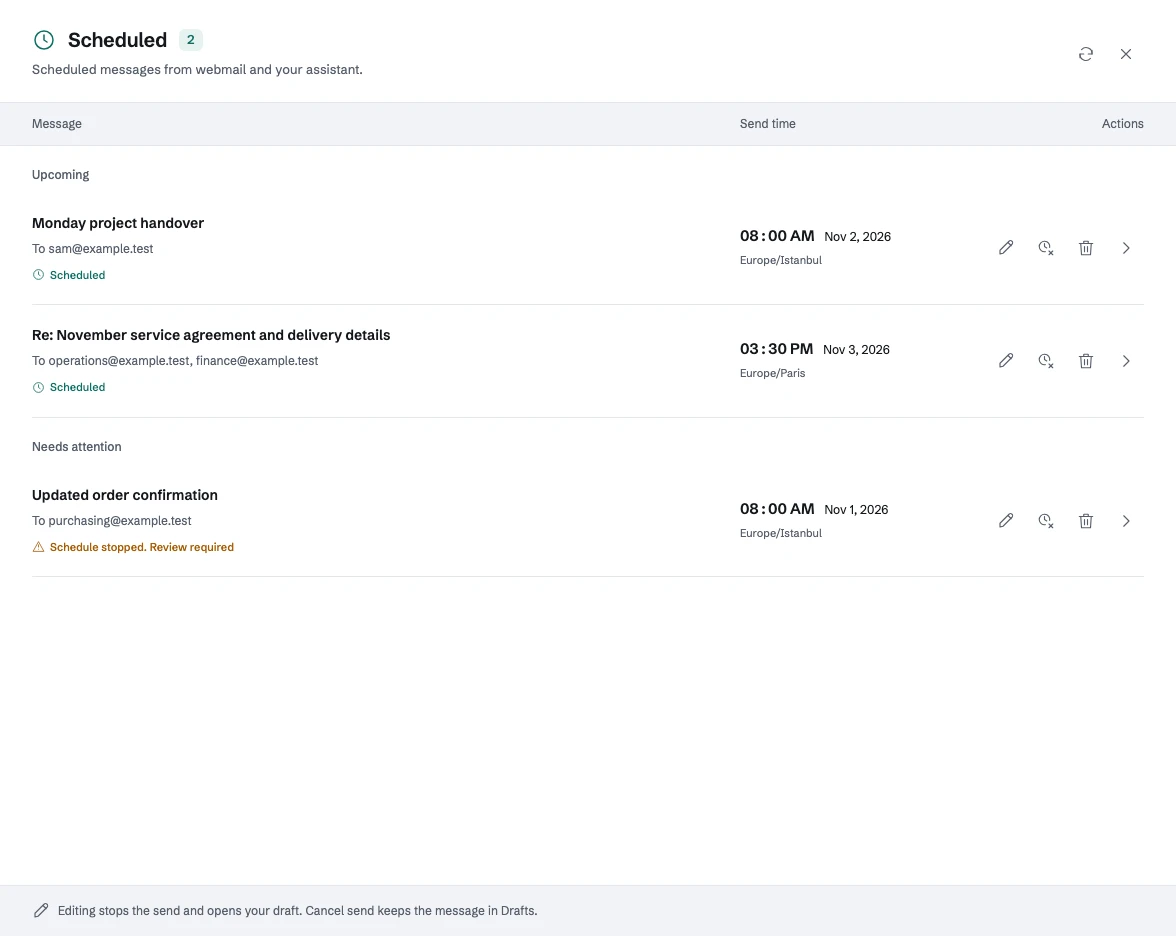
Open Scheduled to find upcoming messages, items needing attention, and recent activity. Select a message to inspect it before taking action. The available actions have different effects:
- Edit message: stops the current schedule and returns the message to Drafts for editing. Choose and confirm a new schedule when you are ready.
- Cancel send: stops the pending send and keeps the message as a draft. You can leave it there, send it manually later, or schedule it again.
- Delete: stops the pending send and moves the message to Trash after confirmation.
These controls apply while a message is still pending. They cannot recall a message already handed to the mail server. If a message is currently sending, refresh its status before deciding what to do next.
What does “Sent” mean?
Sent means the outgoing mail server accepted the message. It does not prove that the recipient has received it in their inbox or read it. Delivery still depends on the receiving server, and a later delivery failure may produce a bounce.
If the system cannot confidently establish what happened during submission, it does not automatically retry and risk sending a duplicate. Check items under Needs attention before preparing a replacement. A message that is more than 15 minutes overdue also stops for review instead of unexpectedly going out much later.
What can you schedule today?
Webmail scheduling supports ordinary messages, including HTML content, attachments, and Bcc. The AI connector’s draft workflow currently uses plain text and To/Cc recipients; it does not support attachments or Bcc.
Scheduled sending is not currently available for signed or encrypted messages or shared aliases. Open tracking is unavailable for scheduled sends. Use an ordinary mailbox sender or a supported personal alias, and review the final sender before confirming.
Schedules created through an assistant remain tied to that connection. Disconnecting it or changing mailbox credentials can stop pending sends, so review Scheduled after making those changes.
Common questions about sending email later
Does my browser have to stay open?
No. Once you confirm a schedule, FranklyMail handles it on the server. You can close webmail and return later to check its status.
Can I change the content after scheduling?
Yes, while the send is pending. Use Edit message to stop the existing schedule and open the draft. After editing, schedule and confirm it again.
Can my assistant send a scheduled email without approval?
No. The connector prepares a proposal. Scheduling requires your review and approval in FranklyMail.
Where do I find emails scheduled through AI?
In the same Scheduled view in webmail. You do not need to return to the original assistant conversation to inspect or manage them.
Open webmail and schedule your next email, or connect your assistant to prepare a message for review.