How to Set Up SPF DKIM DMARC Without Guesswork
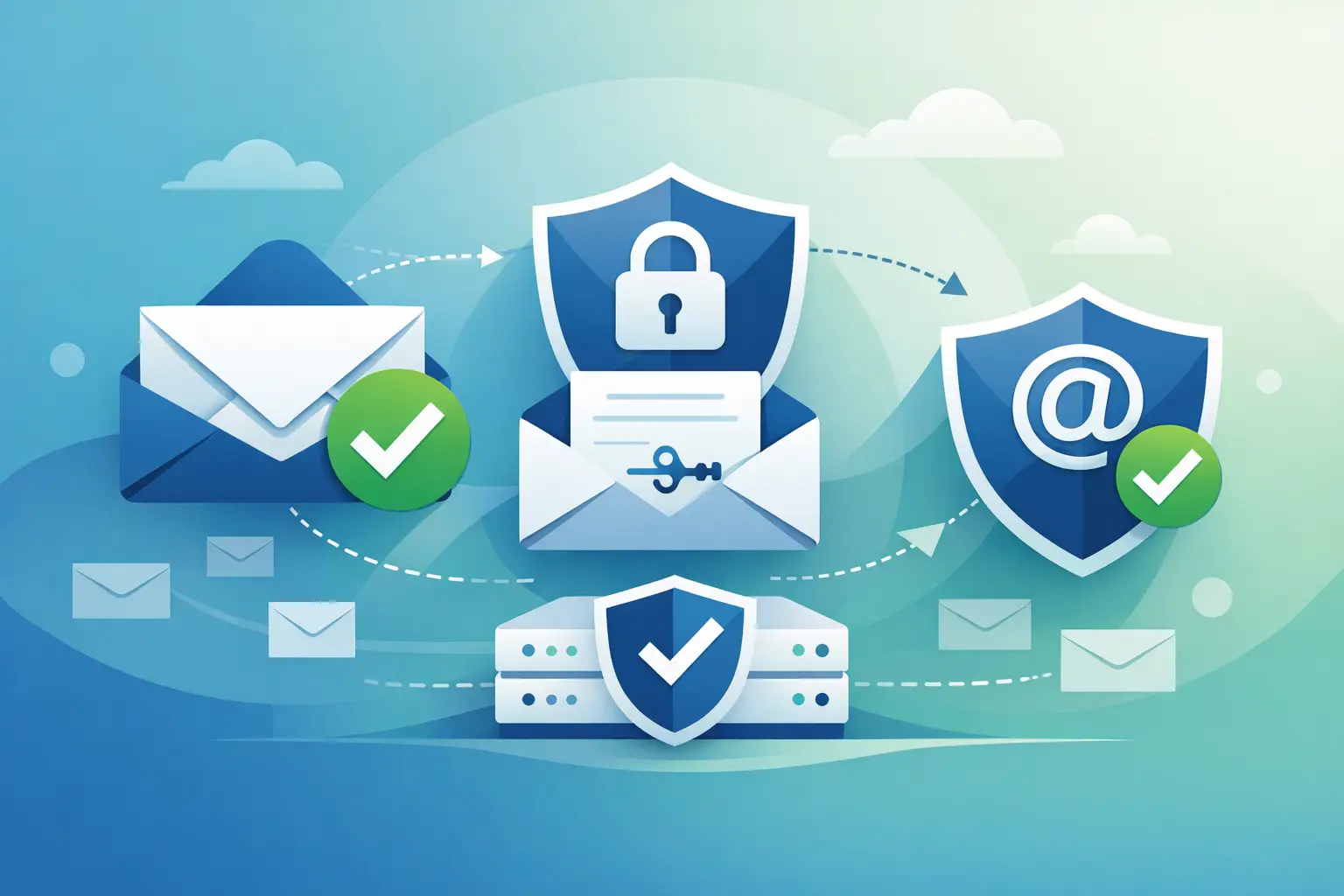
A custom domain is not automatically trustworthy just because you own it. Without authentication records, anyone can put your domain in the From field and send mail that appears to come from you. Some of that mail will be filtered. Some may reach recipients anyway. To set up SPF DKIM DMARC properly, you need to identify every system that sends mail for your domain, publish the right DNS records, then turn on enforcement only after you know legitimate mail passes.
This is not a marketing exercise or a one-click security badge. It is basic email infrastructure. Done well, it protects your domain reputation and improves the odds that real mail reaches inboxes. Done carelessly, it can block invoices, contact-form notifications, password resets, and messages from a service someone forgot was connected three years ago.
What SPF, DKIM, and DMARC actually do
SPF, DKIM, and DMARC work together, but they solve different problems.
SPF says which servers are allowed to send mail using your domain's envelope sender. It is a DNS TXT record containing authorized sending sources, such as your mail host and transactional email provider.
DKIM adds a cryptographic signature to each outgoing message. Receiving servers look up a public key in your DNS and verify that the message was signed by an authorized sender and was not changed in transit.
DMARC tells receiving servers what to do when mail claiming to be from your domain fails authentication. It also requires alignment: the visible From domain must align with the domain authenticated through SPF or DKIM. This closes a loophole where a message could technically pass an unrelated authentication check while still impersonating your brand.
SPF identifies approved senders. DKIM proves a message was signed. DMARC applies the policy. Start with all three, not just SPF.
Before you set up SPF DKIM DMARC, inventory your senders
The most common mistake is publishing records before listing every service that sends email as your domain. Your inbox host is only one possible sender.
Look for systems that send receipts, account alerts, support replies, calendar notices, website form notifications, CRM messages, and cloud application alerts. Include any team member using a third-party sending tool. If a developer configured a service with an address such as alerts@yourdomain.com, it belongs in the inventory.
For each sender, record three things: whether it sends using your visible From domain, whether it supports DKIM signing, and the DNS values it requires. Modern providers usually give you a DKIM record and an SPF include value, or they use a custom return-path domain that handles SPF alignment differently.
Be strict about the distinction between receiving and sending. A service that receives forwarded mail does not necessarily belong in SPF. Adding random providers "just in case" makes the record harder to audit and expands the number of systems that can send as you.
Publish one SPF record, not several
SPF is published as a TXT record at the root of the sending domain, commonly represented as `@` in a DNS control panel. A basic record might look like this:
`v=spf1 include:mail-provider.example -all`
The exact include mechanism must come from your provider. Do not copy the example literally.
The key rule is simple: a domain can have only one SPF TXT record. If you publish one record for your mailbox host and another for a billing platform, many receivers treat SPF as a permanent error. Combine approved sources into one record instead:
`v=spf1 include:mail-provider.example include:billing-service.example -all`
The ending matters. `-all` says all other senders should fail. `~all` is a softer fail and can be useful during a short transition, but it should not become permanent indecision. Once you know the inventory is correct, use `-all`.
SPF also has a technical limit: receivers can perform no more than 10 DNS lookups while evaluating it. A record stuffed with nested includes can exceed that limit and fail even when the right provider is listed. If you use several sending services, check their documentation and keep the record lean.
Add DKIM for every service that signs mail
DKIM records are usually TXT records published under a selector, such as:
`selector1._domainkey.yourdomain.com`
The selector lets a domain use multiple keys at once. Your mailbox provider may use one selector, while a transactional sender uses another. That is normal. Unlike SPF, multiple DKIM records are expected because each selector has its own record.
Copy the hostname and public key exactly as supplied. DNS panels often wrap long values visually, which is fine. Manually inserting spaces into the key is not. Some providers publish DKIM through CNAME records rather than TXT records, especially when they want to rotate keys themselves. Use the record type they specify.
DKIM is usually the more durable authentication method when messages are forwarded. Forwarding can break SPF because the forwarding server is not in the original sender's SPF policy. A valid DKIM signature can survive that path, provided the message is not materially modified.
If your email host supports it, enable DKIM before publishing a strict DMARC policy. At FranklyMail, DNS readiness checks make it easier to confirm that the published record matches the expected signing configuration, but the underlying rule is the same with any provider: a DNS record alone does nothing until outgoing mail is actually signed.
Start DMARC in monitoring mode
Your DMARC record is another TXT record, published at:
`_dmarc.yourdomain.com`
A sensible starting policy looks like this:
`v=DMARC1; p=none; rua=mailto:dmarc-reports@yourdomain.com; adkim=s; aspf=s; pct=100`
`p=none` asks receivers to send reports without quarantining or rejecting mail. The `rua` address receives aggregate reports, usually daily XML files summarizing who is sending mail that claims to be from your domain and whether it passes.
Use a real mailbox or a reporting service that you will actually review. An ignored report address is better than no record only by a small margin. Reports can reveal forgotten senders, spoofing attempts, and configuration gaps that were invisible from your own Sent folder.
The strict alignment settings, `adkim=s` and `aspf=s`, require an exact domain match. They are a strong default for a domain that sends directly from one address space. Some businesses use subdomains or complex vendor setups where relaxed alignment is appropriate. This is one of the areas where the right answer depends on how your mail is structured, not on a generic template.
Move from monitoring to enforcement deliberately
Do not leave DMARC at `p=none` forever. Monitoring tells you what is happening, but it does not instruct receivers to protect recipients from impersonation.
After reviewing reports and verifying legitimate sources, move to quarantine:
`v=DMARC1; p=quarantine; rua=mailto:dmarc-reports@yourdomain.com; pct=25`
This asks receivers to treat failing mail suspiciously for 25% of messages. Increase `pct` as you gain confidence, then move to `p=reject; pct=100`. A reject policy is the clearest statement that mail failing DMARC should not be accepted as your domain.
The transition does not need to be slow for the sake of being slow. If you have a simple setup - one mail host, no third-party senders, and confirmed DKIM signatures - monitoring may be brief. If your company has years of SaaS subscriptions and unknown automations, take longer. The risk is not the policy itself. The risk is enforcing a policy before you understand what is sending.
Test the mail that matters, not just one message
After DNS updates propagate, send test messages to several major mailbox providers. Check the message headers for SPF, DKIM, and DMARC results. A message should show passes for DKIM and DMARC, with the visible From domain aligned to the authenticated domain.
Test more than a normal person-to-person email. Send a password reset, a web form notification, an invoice, a support reply, and any automated alert that uses your domain. If a service cannot sign with DKIM or cannot align SPF with your From domain, consider sending it from a dedicated subdomain such as `mail.yourdomain.com` or `notify.yourdomain.com`. That keeps a vendor-specific compromise away from the domain used for regular correspondence.
Also watch for duplicate records, misspelled hostnames, and DNS panels that append your domain automatically. Entering a full hostname into a panel that adds the domain can create nonsense such as `_dmarc.yourdomain.com.yourdomain.com`.
Email authentication is not glamorous, but it is one of the few controls that protects both your reputation and the people receiving your mail. Treat your sending domains like infrastructure: keep the inventory current, remove services you no longer use, and let your DMARC reports tell you when reality has changed.