How to Transfer Old Email Folders Without Chaos
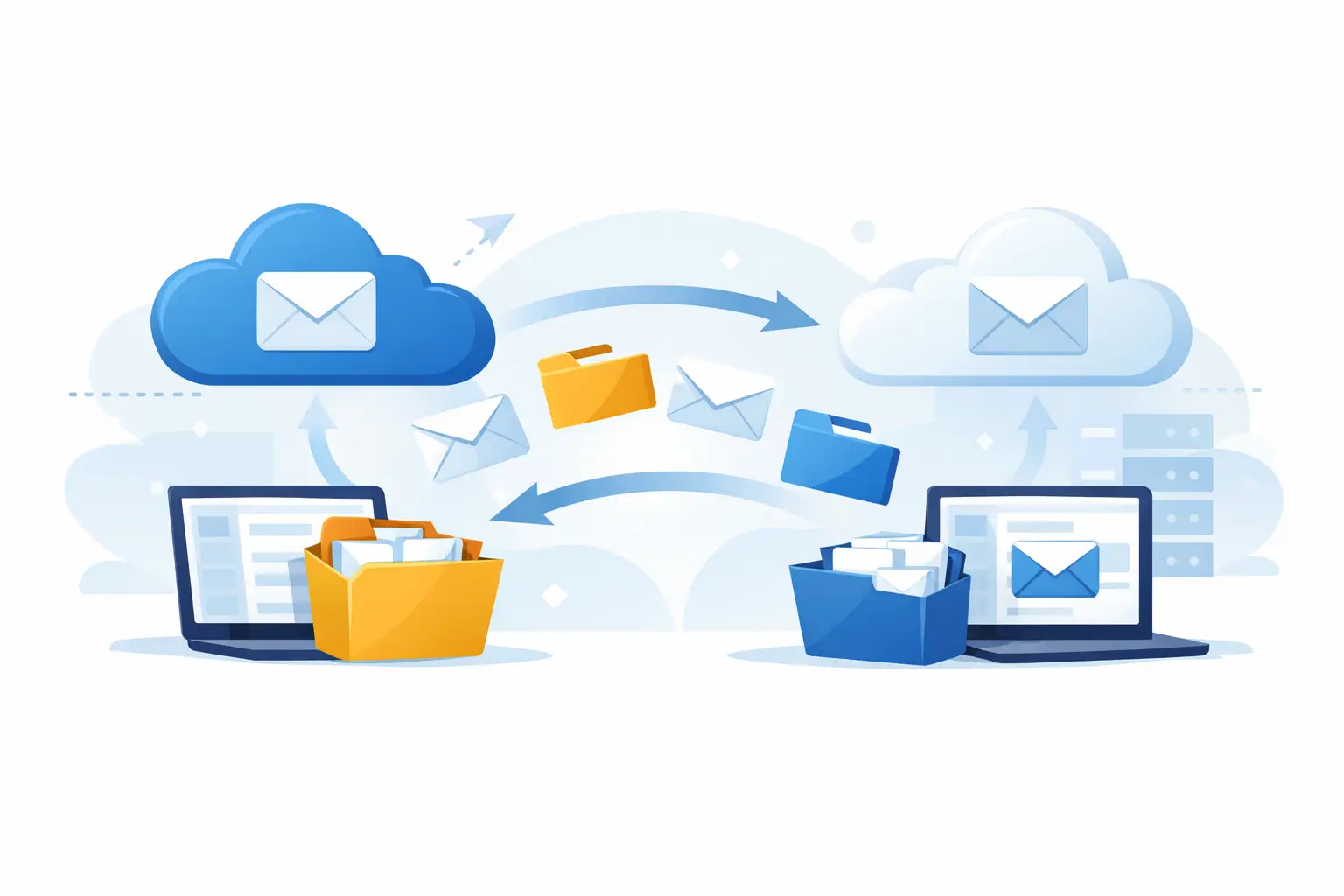
Your inbox may be manageable. The problem is usually everything behind it: years of client threads, receipts, project mail, family records, and folders created by systems you no longer use. When you transfer old email folders, the goal is not simply to copy messages. It is to preserve the history you may need later without creating a broken, duplicate-filled mailbox.
That distinction matters when changing providers, moving from a work account to a personal domain, or consolidating several old accounts. Email folders are not always stored or interpreted the same way by every provider and mail app. A migration that looks finished on day one can reveal missing Sent mail, flattened labels, or incomplete archives weeks later.
The good news: standard IMAP email is portable. The safest method depends on the size of your archive, the access you still have to the old account, and whether you want every old message available in your new mailbox or only the records worth keeping.
Decide what should move before you transfer old email folders
Start by separating active mail from historical mail. Active mail includes conversations that still receive replies, current receipts, ongoing projects, and addresses used for account recovery. Historical mail is everything you want to retain but rarely search.
Moving all of it is often reasonable. Storage is inexpensive compared with the cost of losing a tax record or contract. But a full transfer has trade-offs: it takes longer, consumes storage, and can bring along years of junk, duplicate newsletters, and obsolete folder structures.
A practical approach is to keep the original structure for active folders and simplify the rest. For example, retain folders such as Clients, Finance, and Family, but place old project folders under a single Archive folder by year or source account. You do not need to preserve a 2014 filing system exactly to preserve the messages.
Before starting, check four things:
- Whether the old account still permits IMAP access and password-based sign-in.
- How much mail and attachment storage you have used.
- Whether the provider uses folders, labels, or both.
- Whether the old account has a deletion deadline after cancellation or employment changes.
The last point deserves attention. If an employer controls the old mailbox, get written approval before copying anything. Business email may contain confidential material, retention obligations, or records that do not belong in a personal account.
Use IMAP when both accounts are still available
For most standard email providers, IMAP-to-IMAP migration is the cleanest option. IMAP is designed to keep folders and messages synchronized with a mail server. A migration tool connects to the old mailbox, reads its folder structure, and copies the mail to the new one.
This method generally preserves message dates, senders, recipients, attachments, read status, and folders. It also avoids the common mistake of downloading mail to one computer, where an interrupted transfer or local disk failure becomes another problem to solve.
IMAP migration works best when you can leave both accounts open until the copy is verified. Do not cancel the old service immediately after starting a transfer. Keep it available for at least several days, preferably longer, so the migration can catch late-arriving mail and you can compare counts.
FranklyMail supports migration from standard IMAP providers and verifies the new mailbox before you depend on it. That is useful, but no provider can retrieve mail from an account whose former provider blocks IMAP or has already deleted the data.
Expect special folders to need a quick check
Sent, Drafts, Trash, Spam, and Archive are handled differently across providers. One service may call its Sent folder “Sent Items.” Another may expose all mail through a virtual folder while also showing the same messages under labels.
After migration, inspect Sent mail first. It is usually the folder people notice only when they need proof of a conversation. Then check Archive and any high-value project folders. Drafts are less reliable because some providers store them in proprietary formats or synchronize them differently. Assume you may need to recreate a few unfinished drafts manually.
Labels can also create apparent duplicates. Gmail, for example, treats labels differently from traditional folders. A message with multiple labels may be visible in several places. A competent migration should avoid blindly making multiple copies, but the final organization may still need cleanup.
Export when IMAP is unavailable or unreliable
Not every account is a normal IMAP account. Microsoft 365 and Proton may restrict password-based migration depending on account type and security settings. Some older providers offer only limited access. Others allow export but not a server-to-server copy.
In those cases, export the mail before the account disappears. Common export formats include MBOX, PST, EML, and provider-specific archives. These are useful as preservation formats, but they are not equally convenient for importing into a new hosted mailbox.
MBOX is widely used for bulk archives. EML stores individual messages and is easy to inspect, but it can turn one archive into thousands of files. PST is common in Outlook environments but is less portable outside Microsoft software. If you have a choice, keep the provider's native export and a second copy in a broadly readable format.
An export is not the same as a live mailbox transfer. It may preserve messages while losing folder mapping, read status, contacts, rules, or calendar data. That does not make it a bad option. It makes it an archive-first option.
If the old account contains a large amount of mail, test a small folder before importing everything. Confirm that dates, attachments, and character encoding look right. A test of 100 messages can save you from importing 100,000 messages incorrectly.
Avoid copying mail with drag and drop alone
Desktop apps such as Outlook, Apple Mail, and Thunderbird can copy folders between accounts. This can work well for a small archive, especially when you want direct control over what moves. It is also the easiest method to interrupt accidentally.
A laptop that sleeps, a flaky connection, or a mail client that silently reaches a server limit can leave a folder partially copied. Then you are left determining whether missing messages were never moved or merely moved out of order.
If you use a desktop client, copy in batches. Start with one folder, wait for synchronization to finish, and compare message counts in the old and new accounts. Do not treat a local folder as your only backup unless you have separately backed up that computer.
For a large transfer, server-to-server migration is usually more reliable because it does not depend on one computer remaining awake for hours or days.
Verify the archive instead of trusting a completion screen
A migration can report success while still skipping a few messages due to malformed headers, oversized attachments, permissions, or temporary connection errors. Verification is not optional when the archive matters.
Compare total message counts by major folder, but do not expect a perfect match in every system folder. Spam and Trash may be excluded intentionally. More useful checks include opening the oldest message, a recent message, a message with a large attachment, and a thread that was filed under more than one label.
Search for a few known senders and specific phrases. Confirm that attachments download and that message dates reflect the original delivery date rather than the migration date. If you use an email client, test there as well as in webmail. A folder can exist on the server but be hidden by a client subscription setting.
Keep the old account in read-only practice during verification. If new mail is still arriving there, either run a final incremental migration or set forwarding after the initial copy. Do not configure forwarding as your only migration plan. Forwarded messages often lose original folder placement and may arrive with altered headers.
Build an archive that stays useful
Once the copy is complete, resist the urge to spend a weekend perfecting every folder. Start with a structure you can maintain: a small set of active folders, a clearly named Archive area, and a place for receipts or legal records if you need them.
Use search for the rest. Email search is usually better than the filing habits people built fifteen years ago, provided your messages remain in a standards-based mailbox and you do not bury them in an offline file nobody can open.
For accounts you may close, save the final account details, export date, approximate message count, and any recovery codes in your records. That small note answers a surprisingly common future question: where did this archive come from, and is it complete?
Email should remain yours even when the provider changes. Move what has value, verify it before the old account goes away, and keep the archive in a form you can access without asking anyone for permission.